Impexel Toolkit
Find anything in your project.
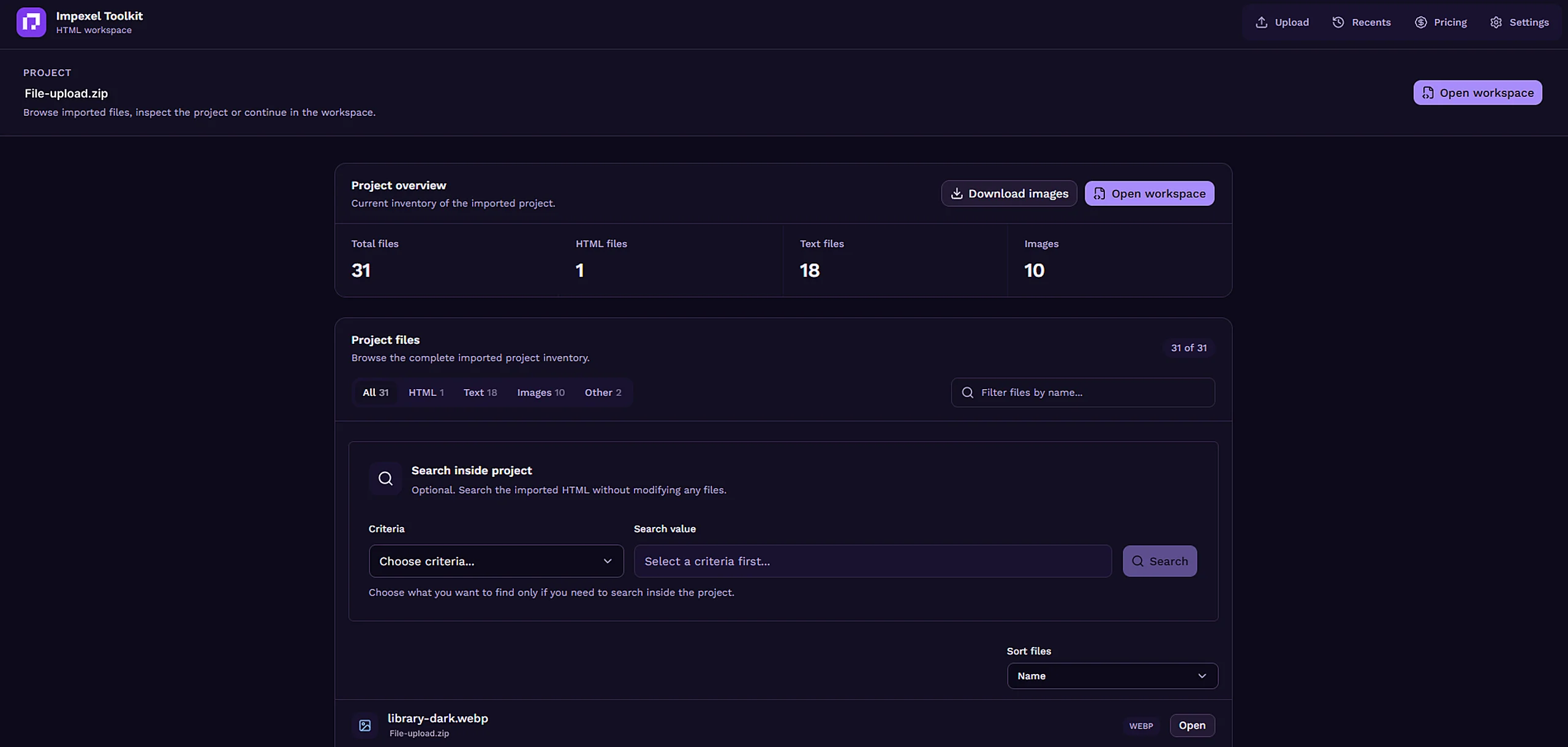
A browser-based workspace for searching, inspecting, comparing and editing file-based projects. Instead of extracting archives, digging through folders and switching between tools, you import a project once and work with all of it from one interface — no coding environment required.
- Project
- Independent Impexel product
- My role
- Product design, UI design, full-stack development
- Platform
- Web, browser-based
- For
- Email & web designers, marketers, content teams, developers
The challenge
More file management than actual editing
Working with a large set of HTML templates often means hunting for things: every template with a certain URL, an outdated image, a line of copy, an old brand color. The usual workflow looks like this:
- Download
- Extract
- Browse folders
- Search
- Open files
- Inspect code
- Edit
- Compare
- Save
- Rebuild
It gets harder when you know a value exists somewhere in the project, but not in which file.
- Archives must be extracted before you can look inside.
- Nested folders make individual files hard to find.
- Search, preview, editing and comparison live in different apps.
- Finding a value is only step one — you still have to open the file and change it.
- Comparing two templates as raw code hides what really changed.
- Every extraction creates another local copy and another version to track.
Product direction
From one search to one workspace
The first idea
Search inside a ZIP and quickly find which templates contain a specific URL or text.
Each adjacent task revealed the same problem. Finding the file led to inspecting it; inspecting led to editing; editing raised the need to track colors; multiple versions called for comparison; and every change needed a clean way out. The product grew into one flow:
- Import
- Scan
- Search
- Inspect
- Edit
- Compare
- Export
Import & scan
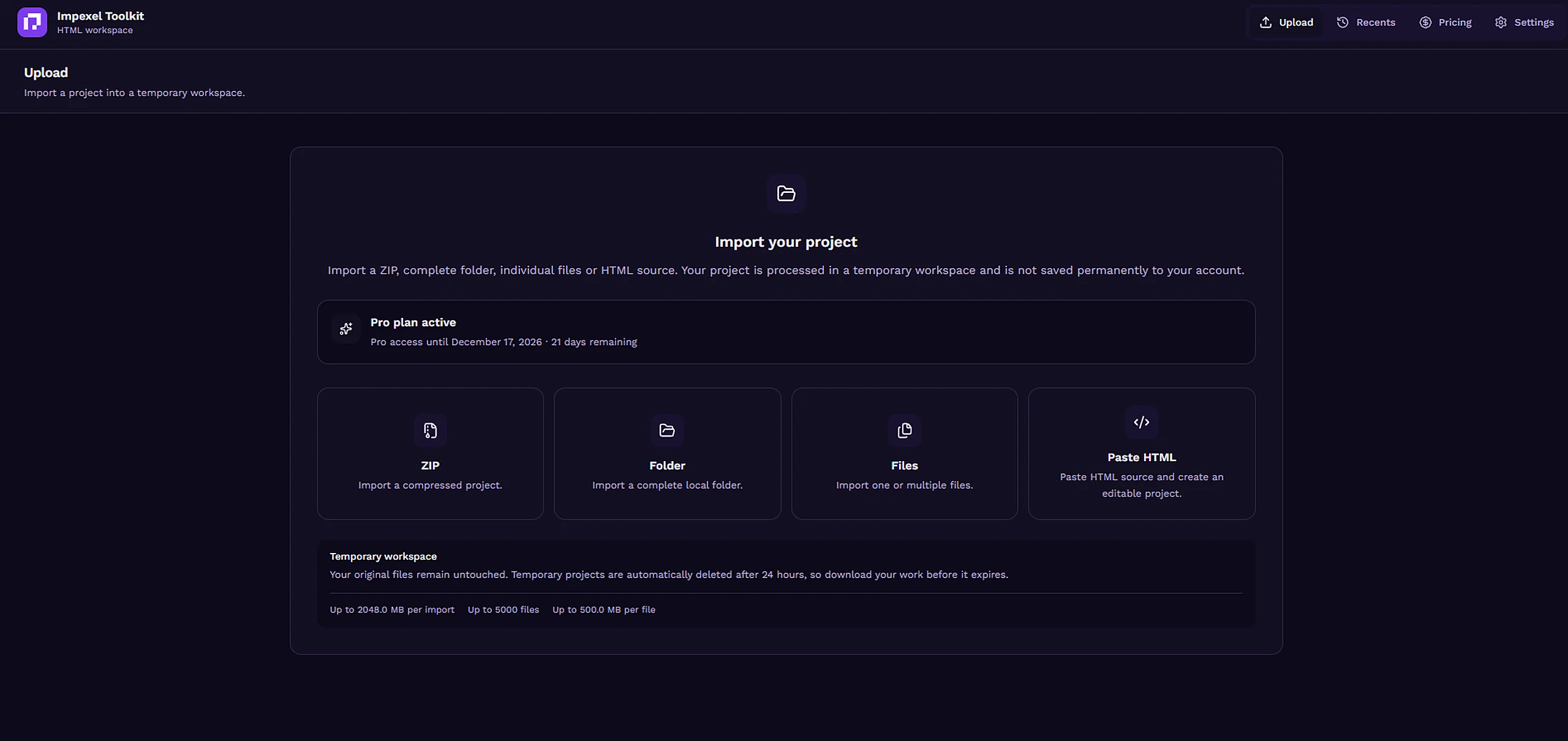
Bring the project in as it is
A project can start as a ZIP, a folder, several files or pasted HTML. Its folder structure is preserved, and Toolkit scans it into a navigable file tree — the base for every project-wide action that would otherwise mean opening files one by one.
- ZIP archives
- Complete folders
- One or multiple files
- Pasted HTML source
Search
Show me everywhere this exists
“Which file contains this?” becomes “Show me everywhere this exists.”
Search was the original core and is still the heart of the product. Results show both the matching files and each occurrence inside them, and stay linked to the file explorer.
- Text and copy
- URLs and domain fragments
- Links
- Image URLs
- HEX colors
Find first. Fix immediately.
Discovery and action in the same place
Most search tools stop once the file is found. Toolkit keeps going: a result opens in the workspace, in context, ready to edit. Updating an outdated domain looks like this:
Scan the project
Import it once; Toolkit maps every file and folder.
Search for the domain
One search across every file in the project.
See every affected template
Each match, with every occurrence inside it.
Open the file in context
Jump straight from a result to the file.
Edit the value
Change it visually or in the source code.
Save the new version
Changes are stored in the workspace first.
Download the result
Export a single file or the whole project.
Visual editing
Edit the template, not just the code
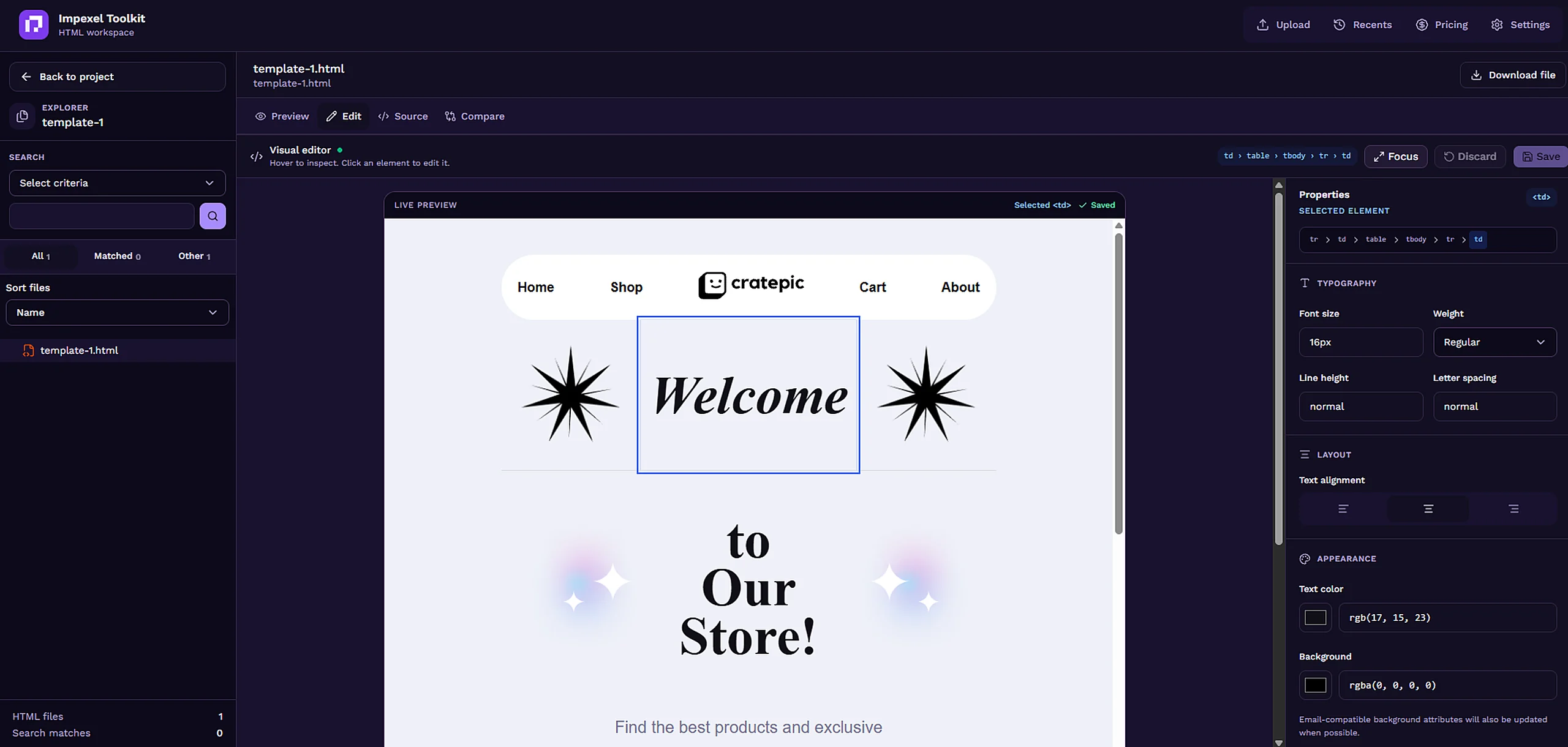
HTML files can be edited visually: select an element in the rendered template and adjust it through contextual properties. The source code is always one click away for anyone who prefers it. For HTML email, the editor understands common email patterns such as inline styles and legacy alignment or background attributes.
- Text
- Links
- Images & alt text
- Font size & weight
- Line height & letter spacing
- Text & background colors
- Background images
- Alignment
- Padding & margins
Colors
Colors you can search
A brand refresh often starts with a question nobody can answer quickly: which templates still use the old color? Toolkit detects HEX values across the project, shows where each one appears and opens the files to change them — useful for brand migrations, campaign refreshes and cleaning up inherited templates.
Comparison
What actually changed in this template?
Line-by-line code comparison treats every change as equally important. Toolkit compares HTML by meaningful content instead, and lets you choose which changes to apply — handy when merging campaign variants or deciding which version becomes final.
- Images
- Links
- Buttons
- Text
- Styles
File types
Different files, one workspace
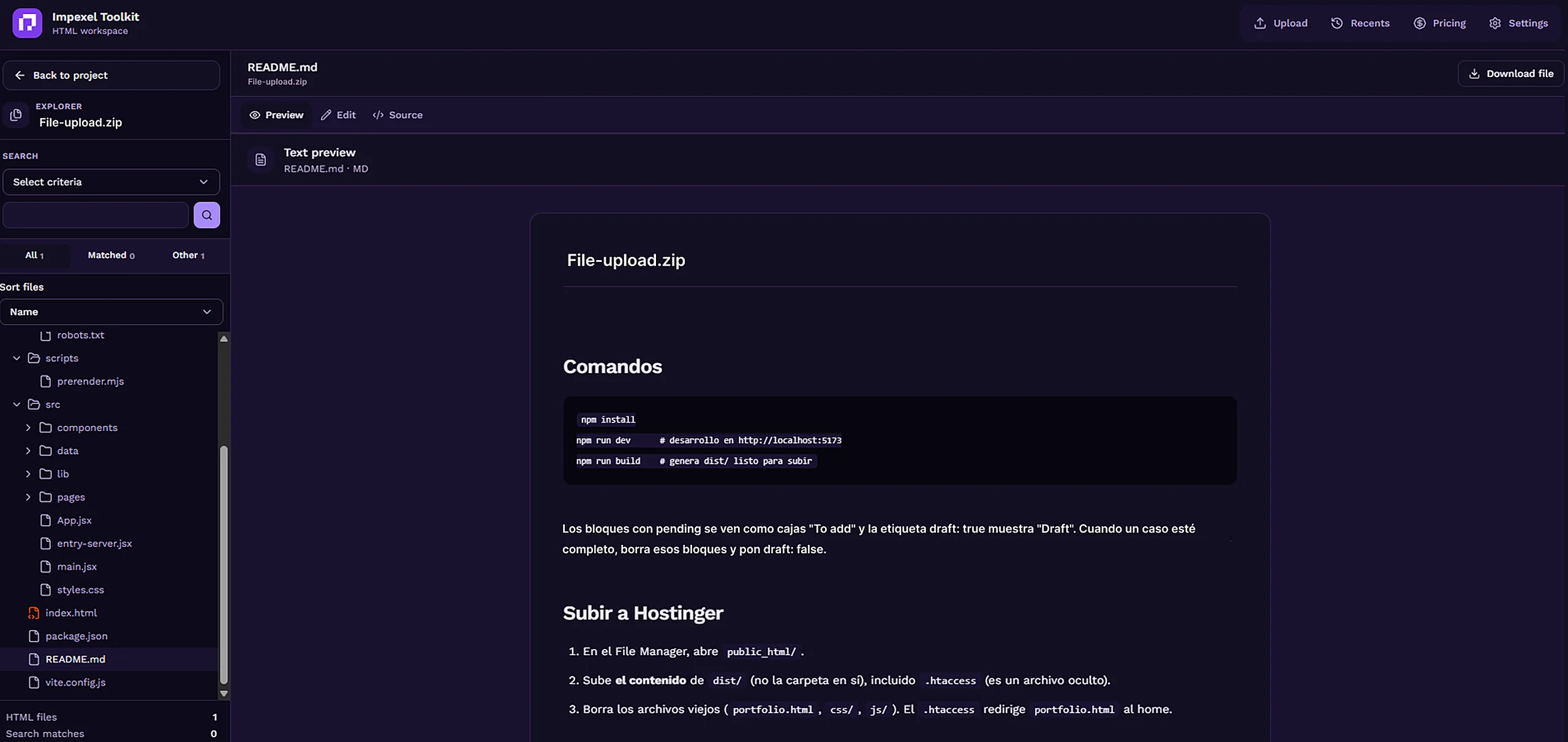
HTML is the main use case, but projects rarely contain HTML alone. Each format gets the experience it needs: text formats are editable, CSV opens in a table with search, filters and sorting, and other assets can be previewed or downloaded.
- HTML
- CSS
- JavaScript
- TypeScript
- JSON
- XML
- CSV
- Markdown
- SVG
- Images
- Office docs
- Video
Safe editing
Your originals stay untouched
Imported projects are temporary working copies. Nothing silently overwrites the files on your computer, and there is no need to keep extracting archives or creating extra local folders.
Save
Updates the file inside the workspace.
Download
Returns a file — or the whole project — to you.
UX architecture
Three connected layers
Explorer
The full project tree. A sidebar on large screens, an overlay on small ones.
File workspace
The open file, with Preview, Edit, Source, Compare and search matches.
Project actions
Search and filters that work across the whole project, not just one file.
Moving between project-level discovery and file-level editing never requires leaving the workspace.
Principles
Decisions that shaped the product
Search should lead somewhere
A matching filename isn’t enough; results go straight to the content.
The project is the unit of work
A ZIP with hundreds of templates is still one workspace.
Editing preserves the original
Changes stay on a copy until you export them.
Each format gets its own interface
Visual editing for HTML, a table for CSV, source for text.
Complexity stays optional
Search one URL and leave — or go deep when the task needs it.
Business model
Free to try for real. Pro to keep going.
The free plan is a complete, working experience — not a limited demo — so people see the value by finishing a real task. Pro unlocks continued use; it is never split by features.
Free
$0
One complete project with the full toolkit.
Pro · Monthly
$12
per month
Pro · 6 months
$66
≈ $11 per month
Pro · Annual
$120
≈ $10 per month
Outcome
From a search utility to a complete workspace
What began as project-wide HTML search became one place to understand and change file-based projects — capabilities that would otherwise take several steps or several apps.
- Project import
- Folder exploration
- Project-wide search
- Contextual preview
- Visual HTML editing
- Text & CSV editing
- Semantic comparison
- Selective changes
- File download
- Full project export
Takeaway
Find what needs to change, understand it in context, make the change and export the result — without turning file navigation into the task itself.
Try it yourself